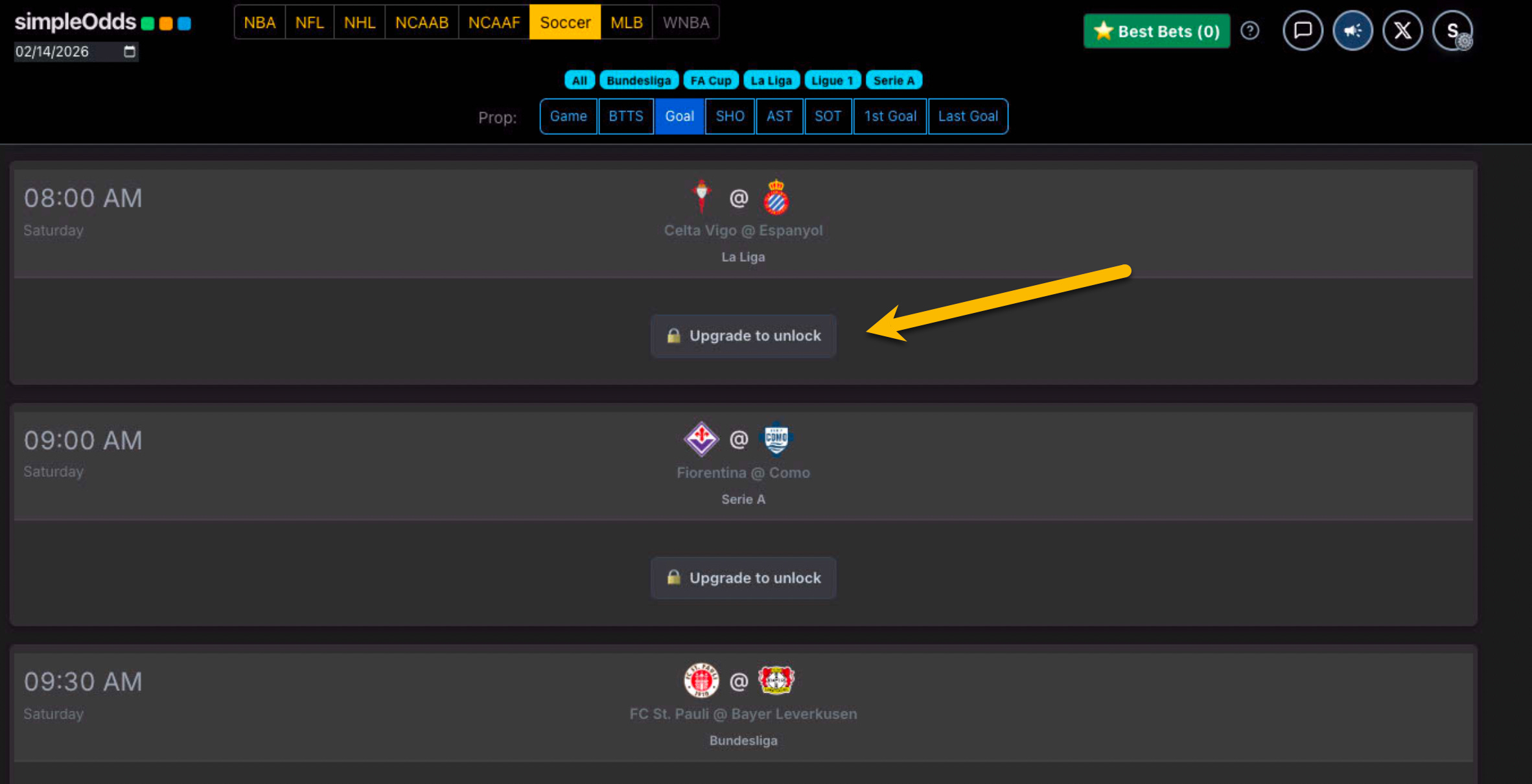
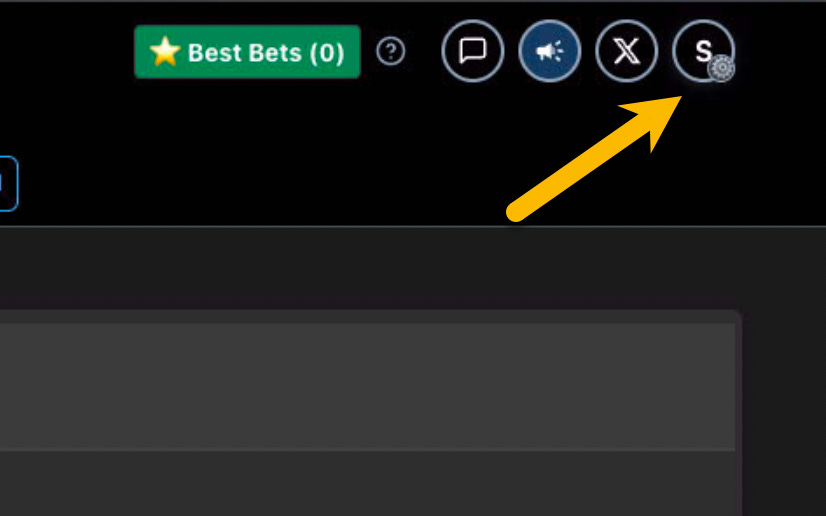
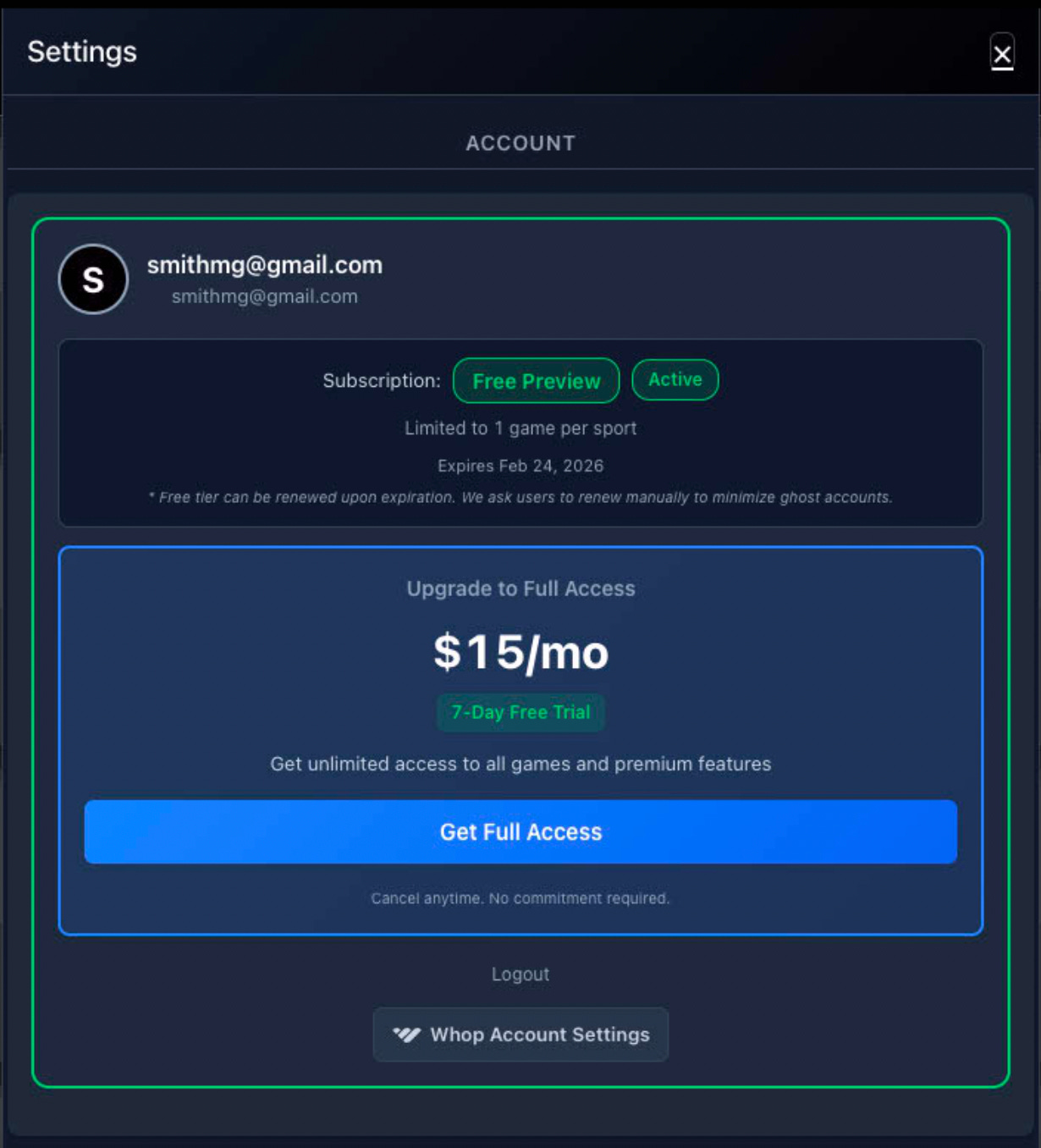
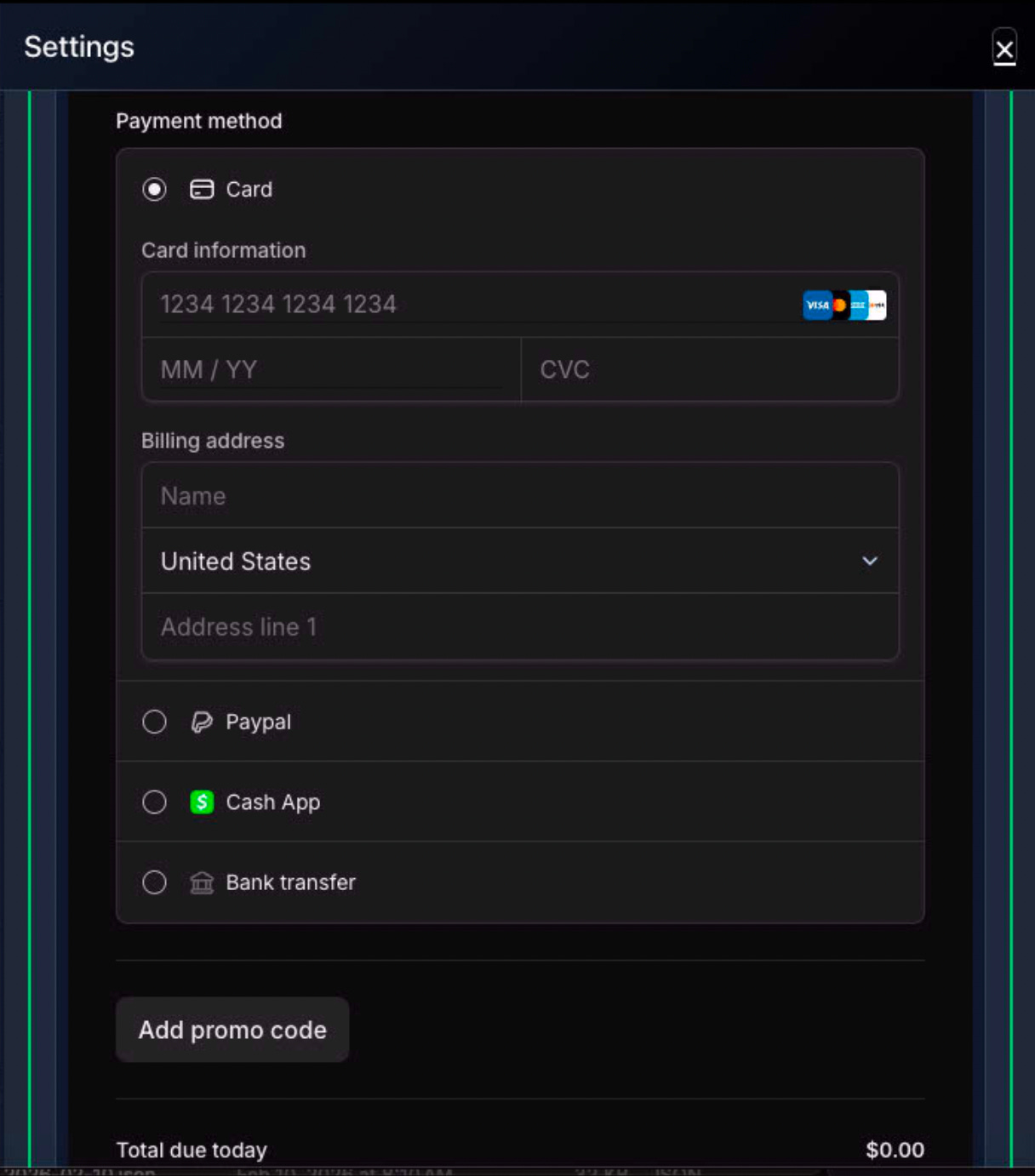
The screenshots below show the mobile version, but the process is the same on a desktop web browser.
The account creation/login/payment process is very straightforward and intuitive. It has been laid out in detail here to help users know what to expect.
Step 1 - Whop
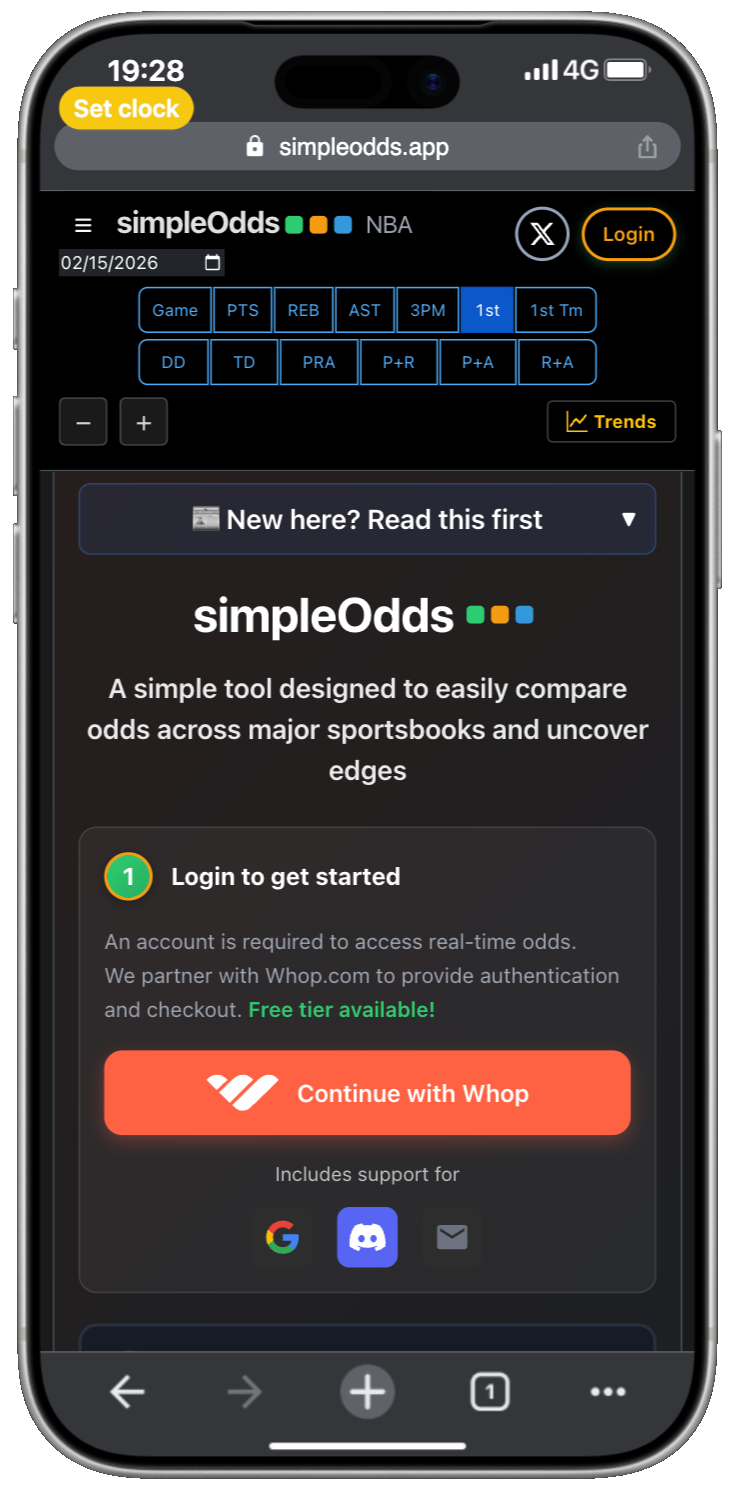
SimpleOdds uses Whop for authentication and payment processing. Whether you are creating a new account or logging into an existing account, you do so by clicking the Continue with Whop button from the main screen:
Step 2 - Create login
If you have previously logged into an existing account on this device, then you can most likely skip to Step 4.
If you are logging into an existing account on a new device, select the authentication method you used to create your account
OR
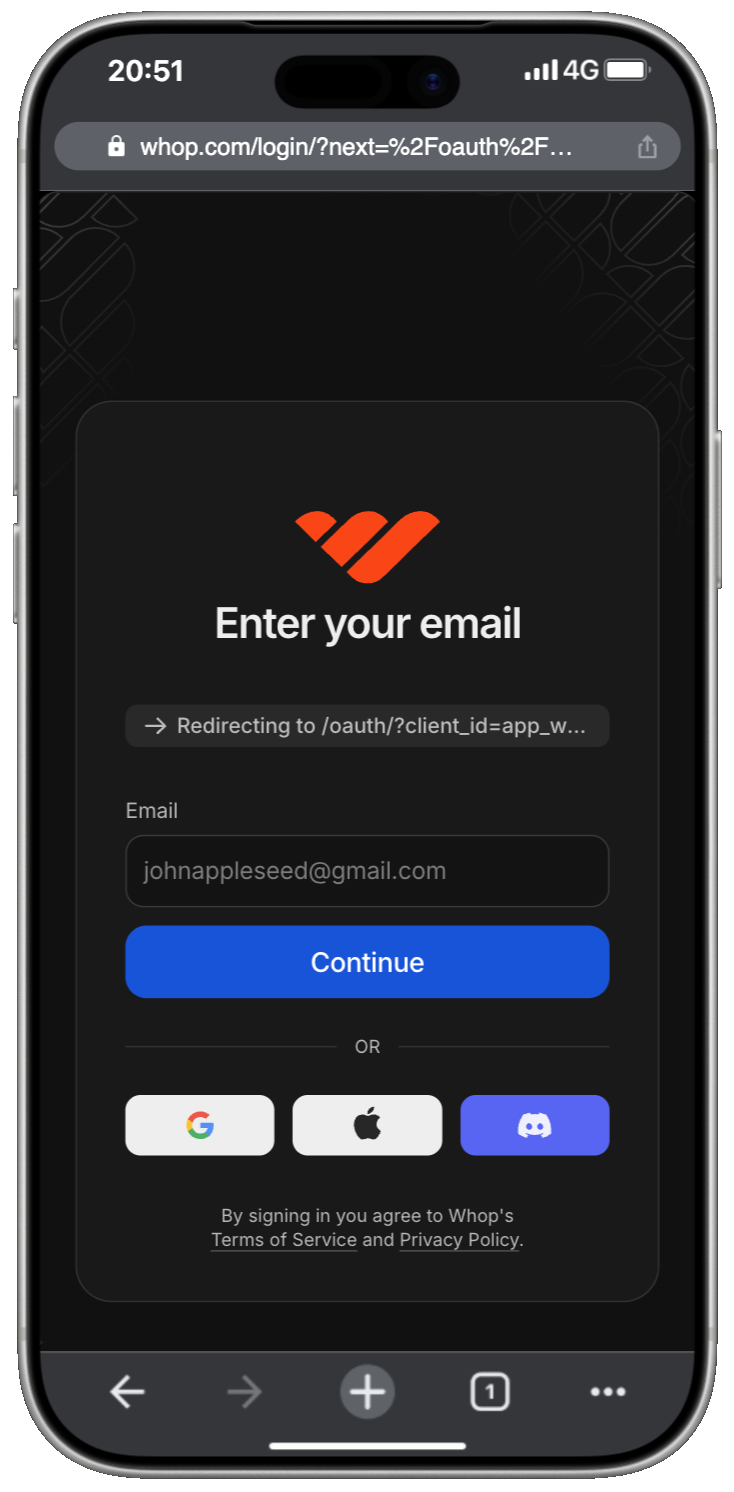
If you are creating a new account and logging in for the first time, you have multiple options to manage your identity with Whop/SimpleOdds:
Your Email address
Google account identity
Apple account identity
Discord login/identity
Step 3 - Verification code
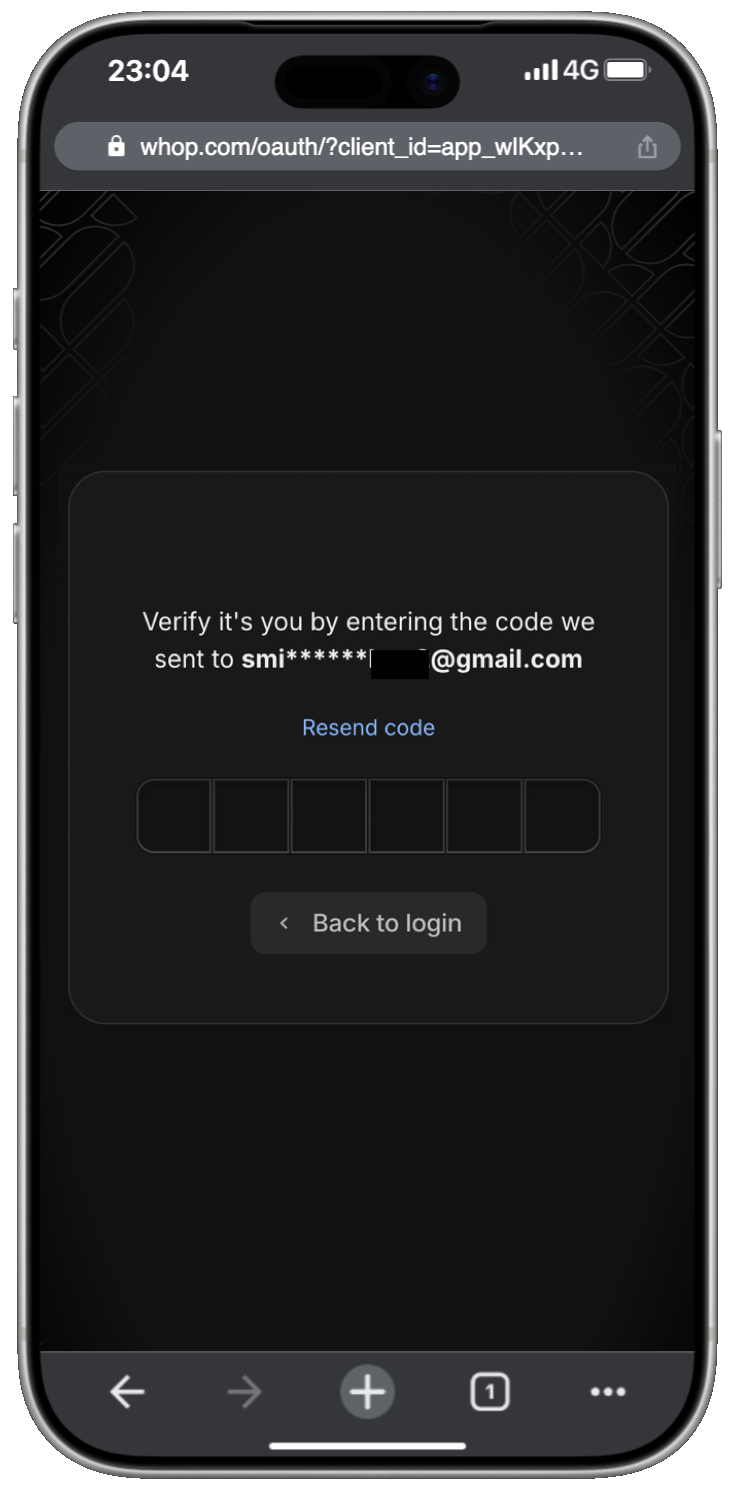
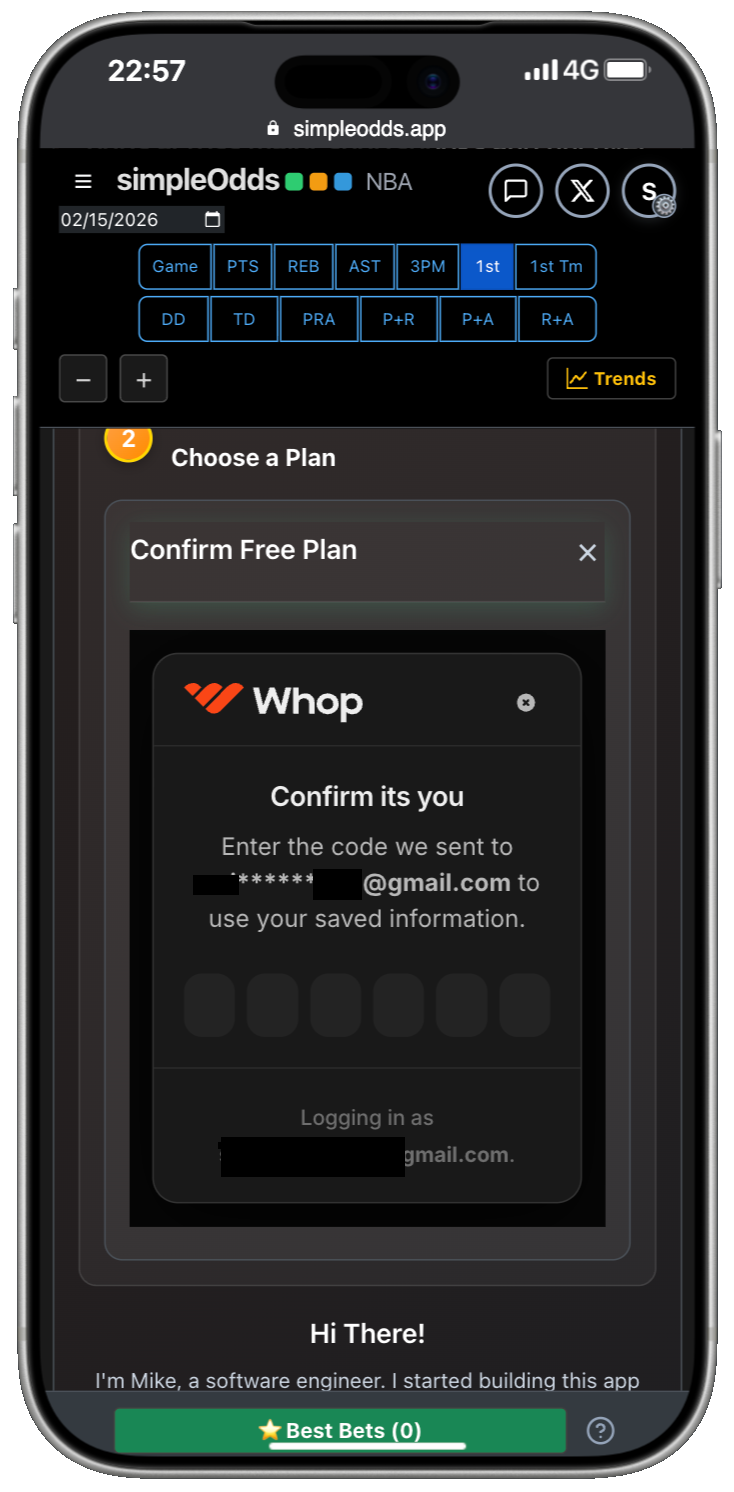
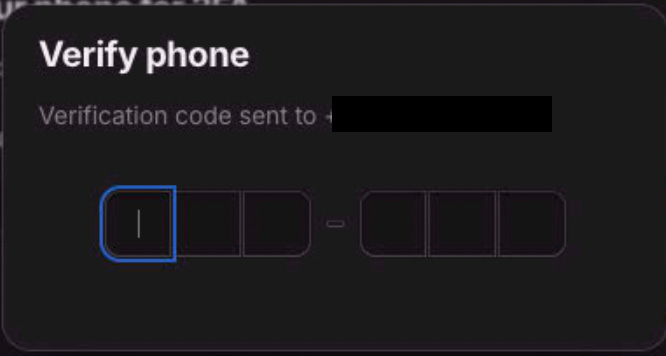
Whop will send you a verification code. Enter that code in the screen below.
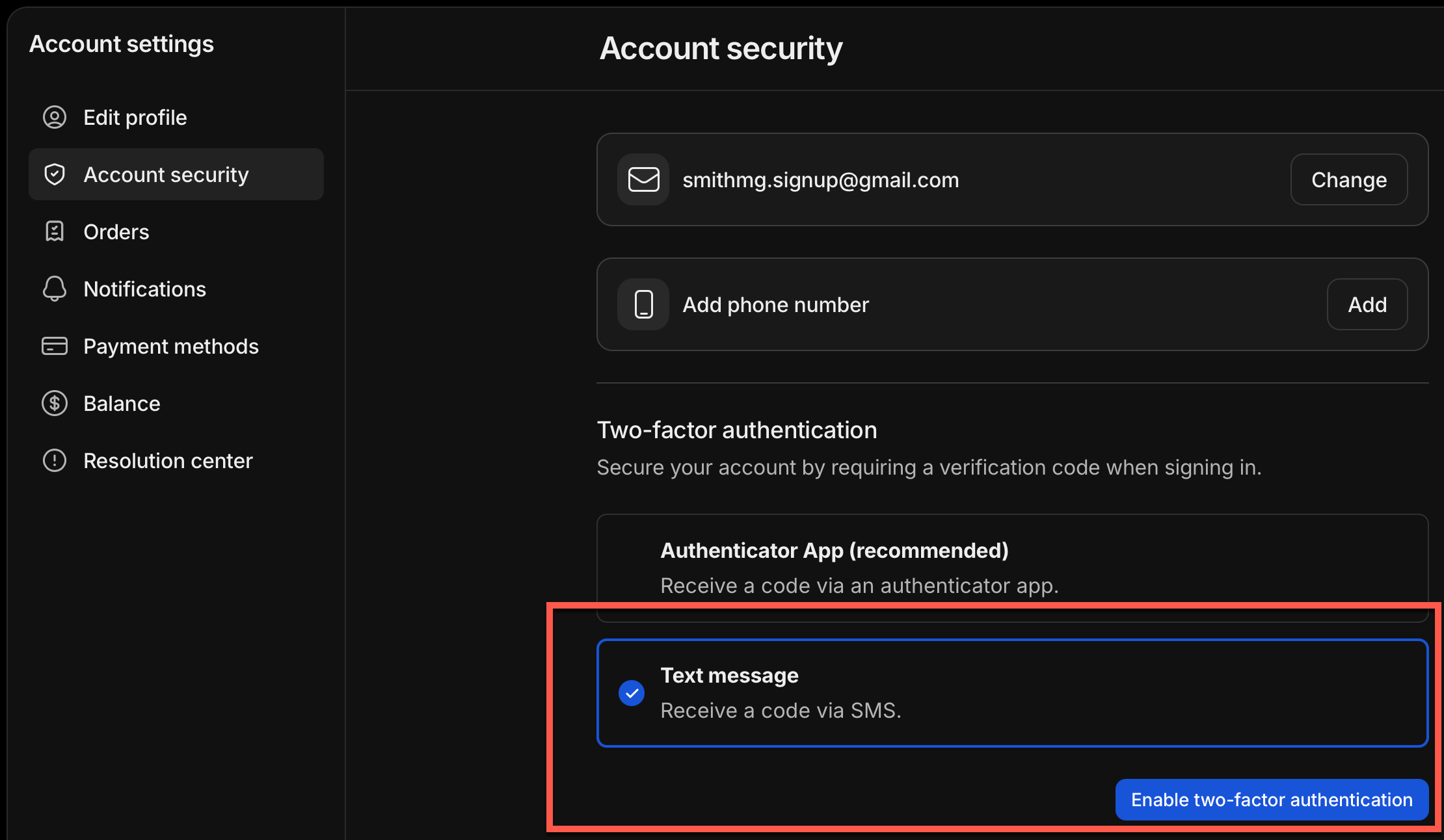
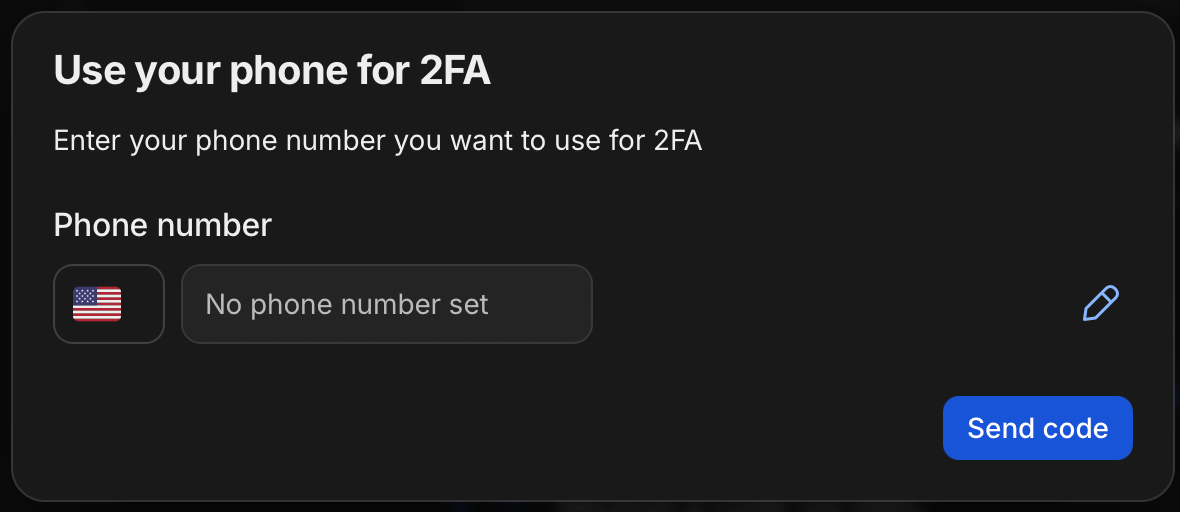
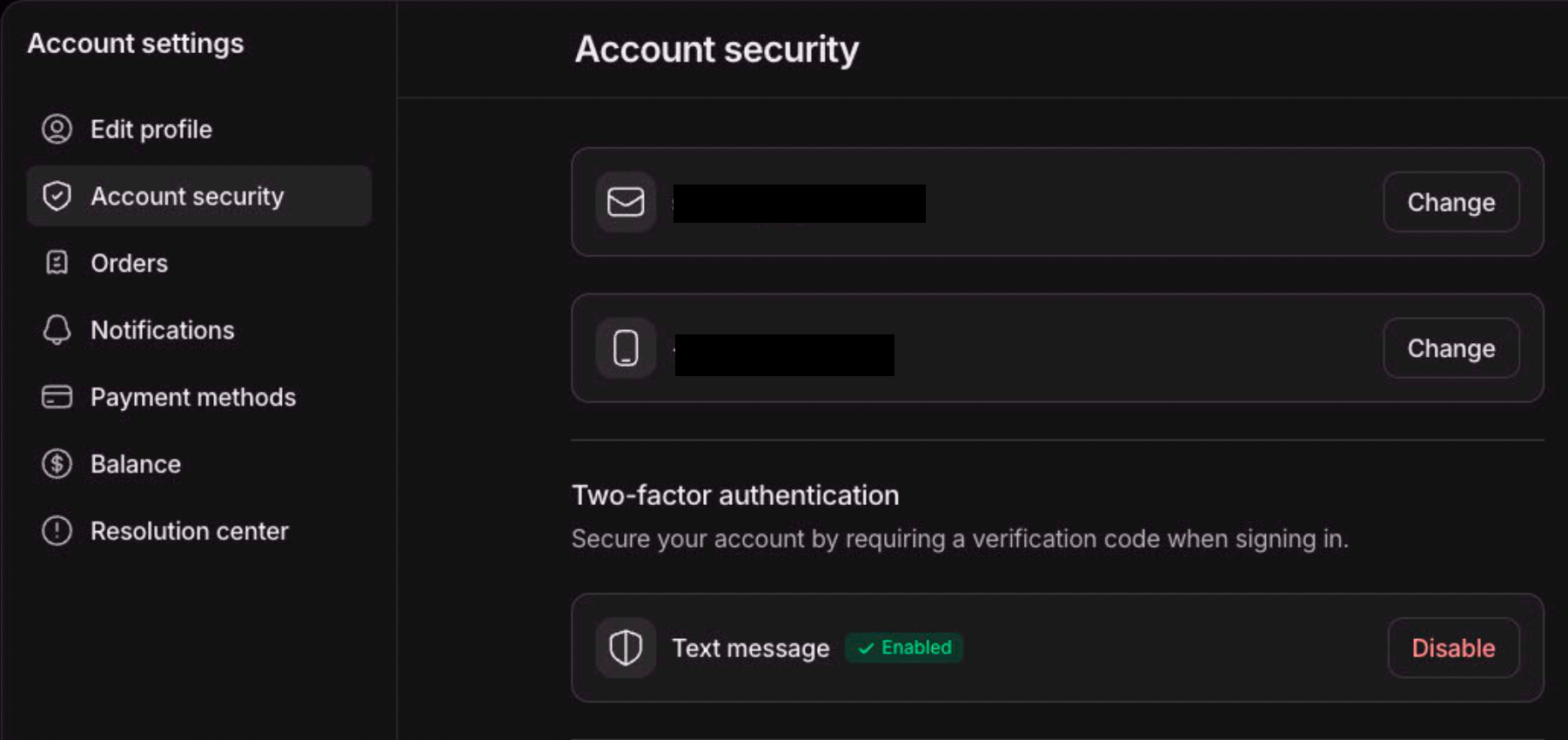
NOTE: Some users have experienced an issue receiving their verification code before it expires. If that is the case, you can set up multi-factor authentication with your mobile phone number here.
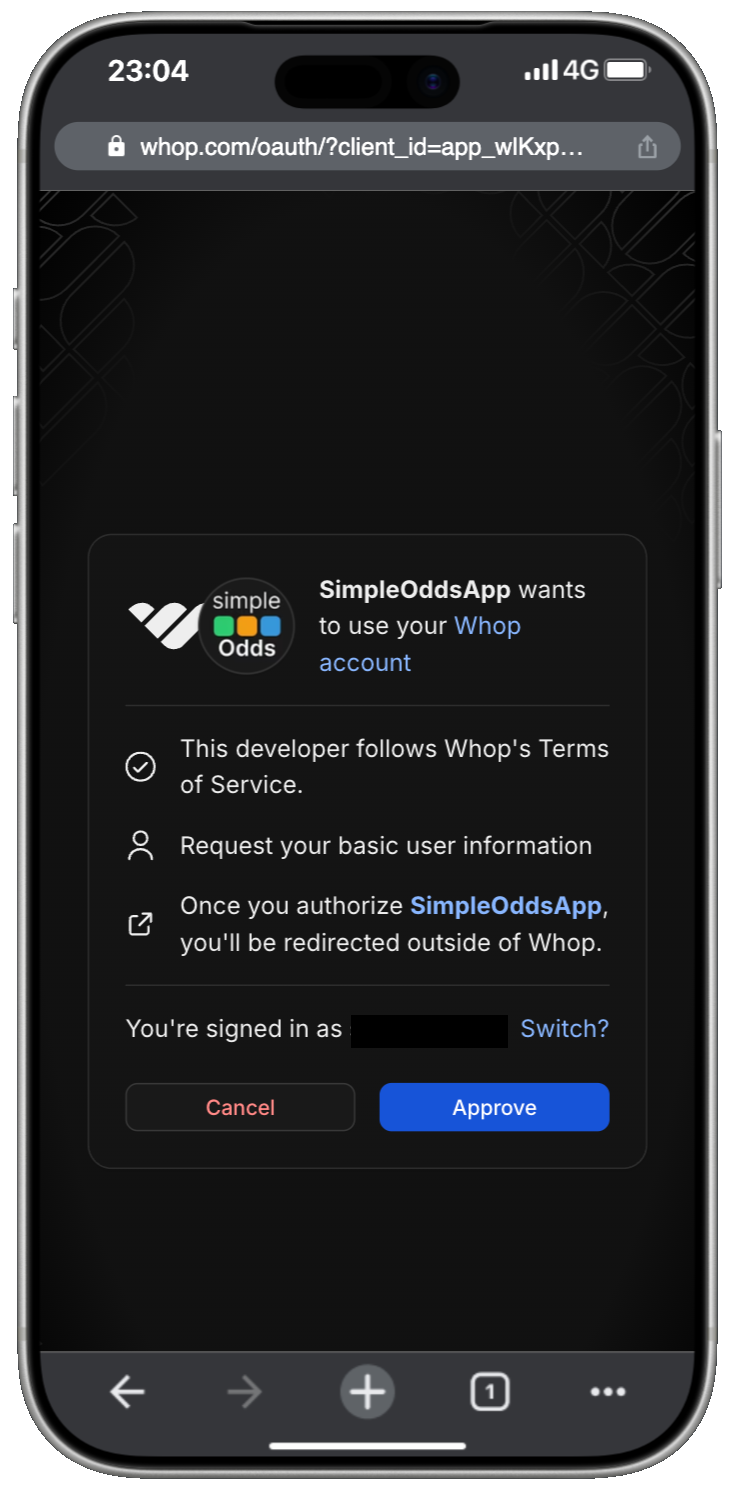
Step 4 - Authorize SimpleOdds
Any time you are logging in, Whop will prompt you to authorize SimpleOdds to access your Whop account. Click the Approve button.
Step 5a - Existing accounts
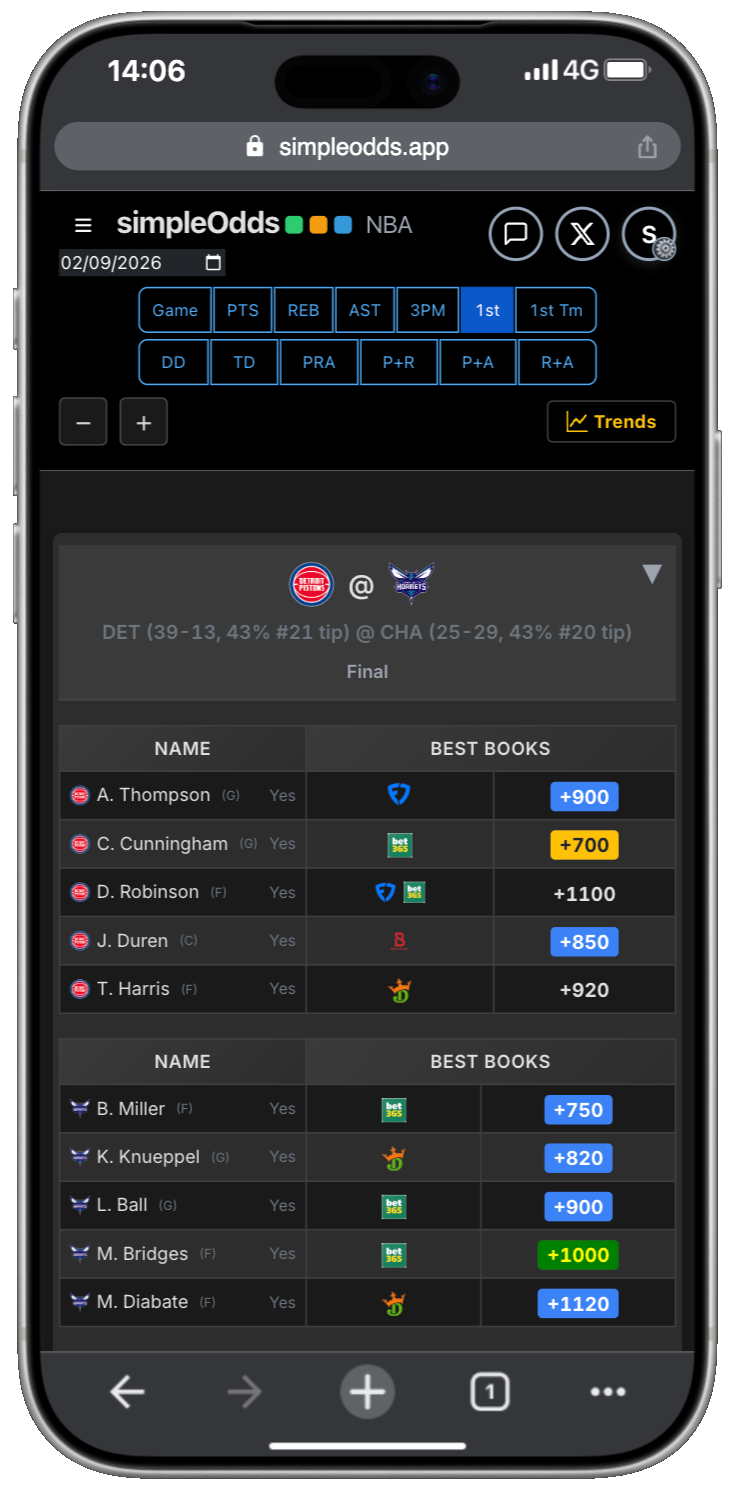
If you are logging into an existing account, then you will be redirected back to the odds screen. You should now be able to access odds.
All remaining steps only apply to users creating a new account.
Step 5b - Select plan
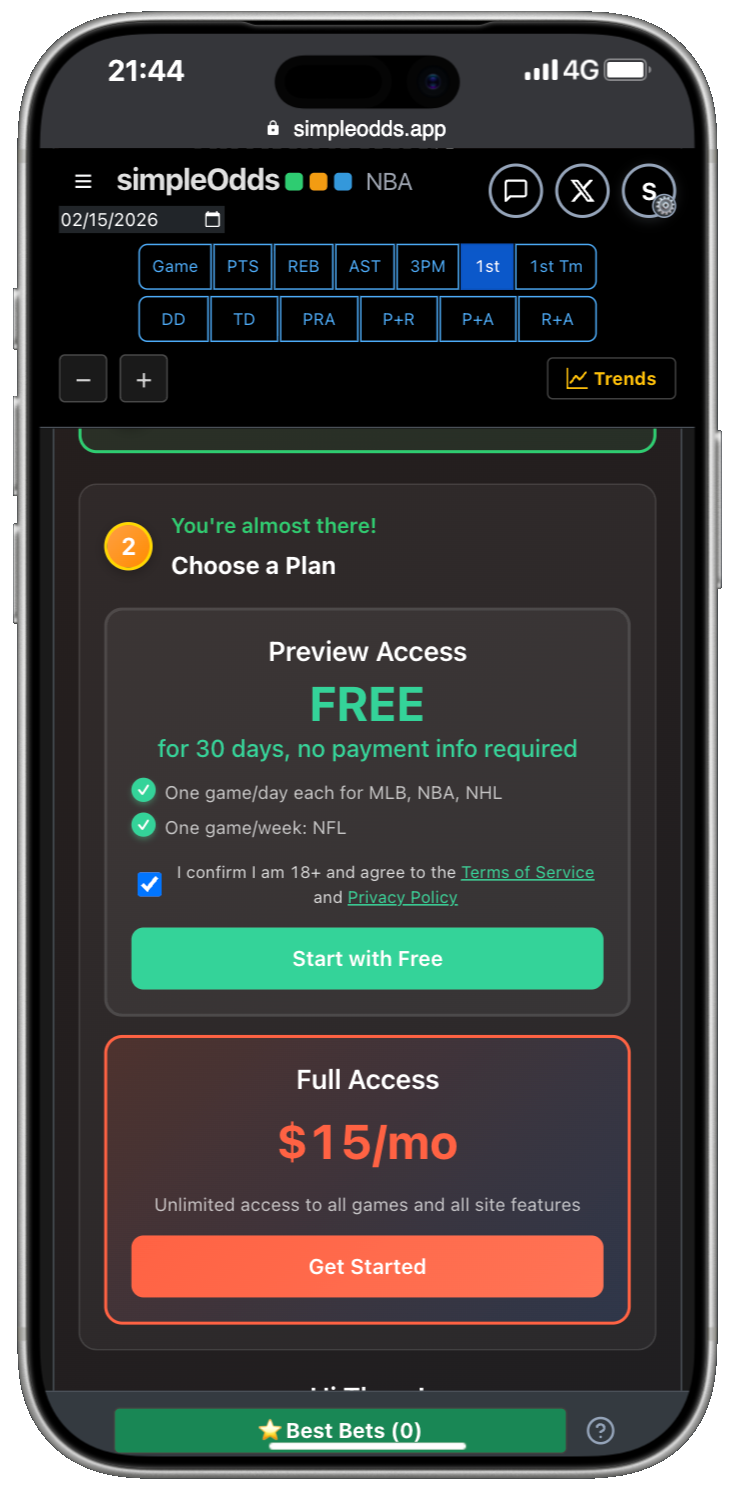
If you are creating a new account, once you have created your Whop account and authorized SimpleOdds to access that account, you are redirected back to the main SimpleOdds screen. To gain access to the odds screen, you need to select one of the available plans:
Step 6a - Free Preview
(To subscribe to a paid plan, skip to Step 6b.)
The Free Preview/Limited Access plan provides odds for one game per sport/day (one game per week for NFL/NCAAF). This plan expires after 30 days but users are free to re-subscribe every 30 days. We do this to make account cleanup easier.
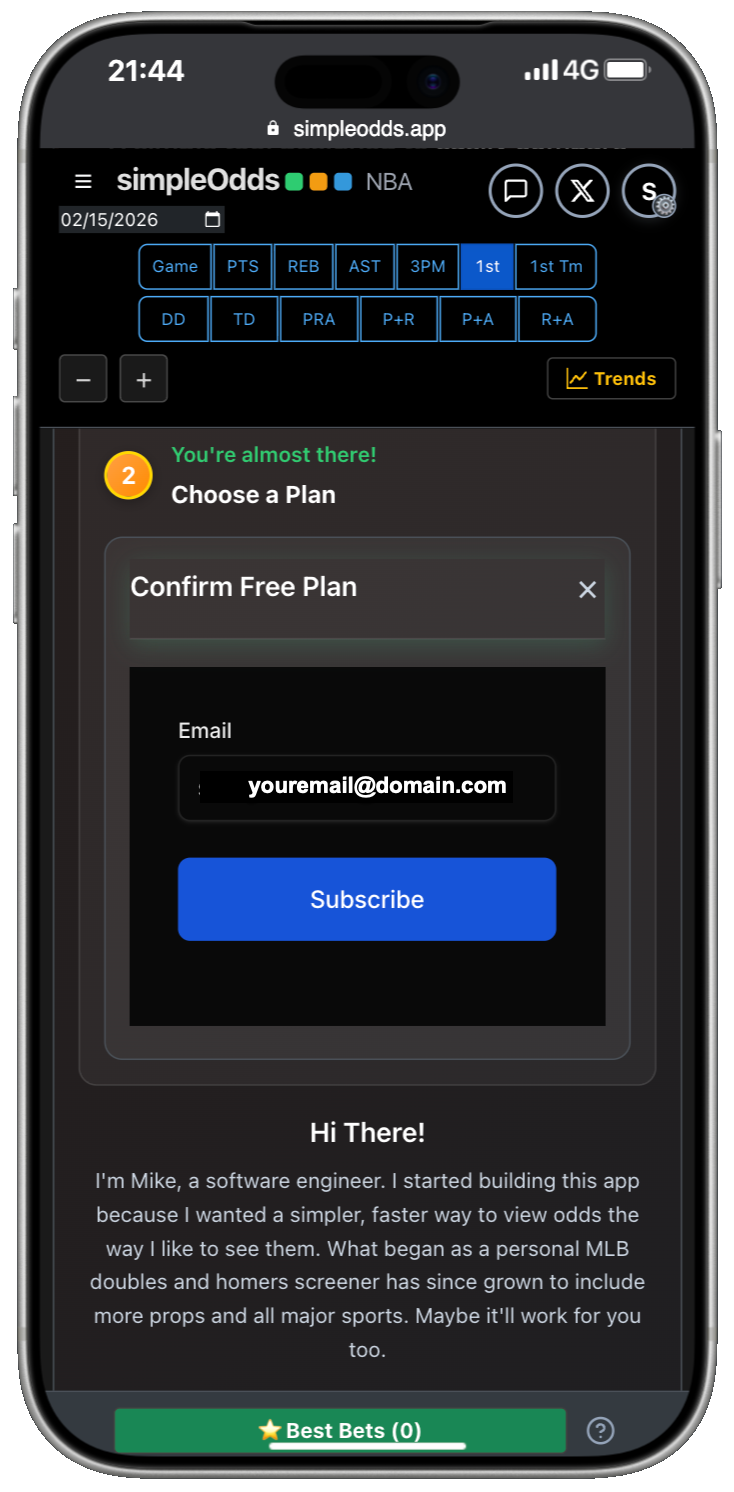
After clicking the Start with Free button, confirm your selection by clicking the Subscribe button:
Whop will ask you to confirm your identity by sending a confirmation code to your chosen authentication method.
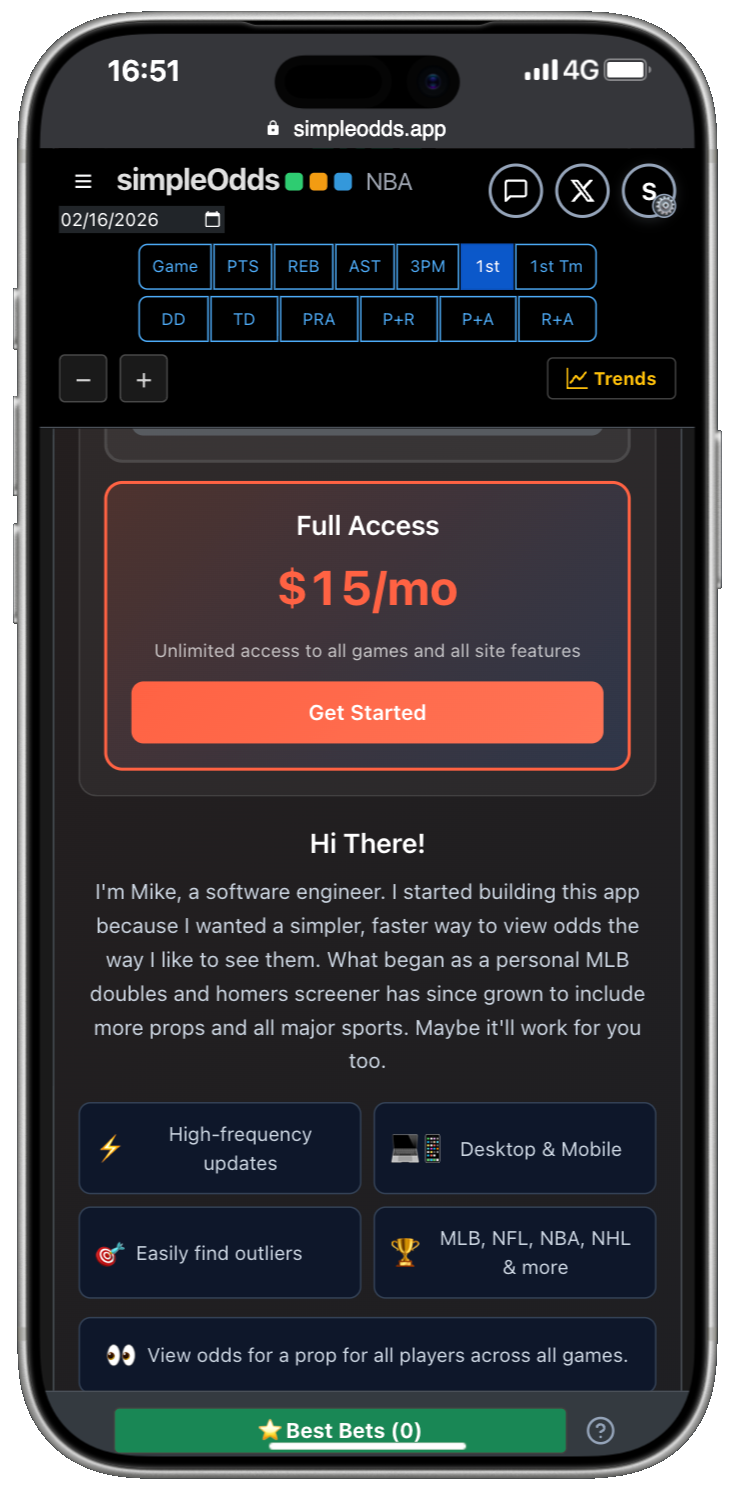
Step 6b - Paid Subscription
Click Get Started in the Full Access block.
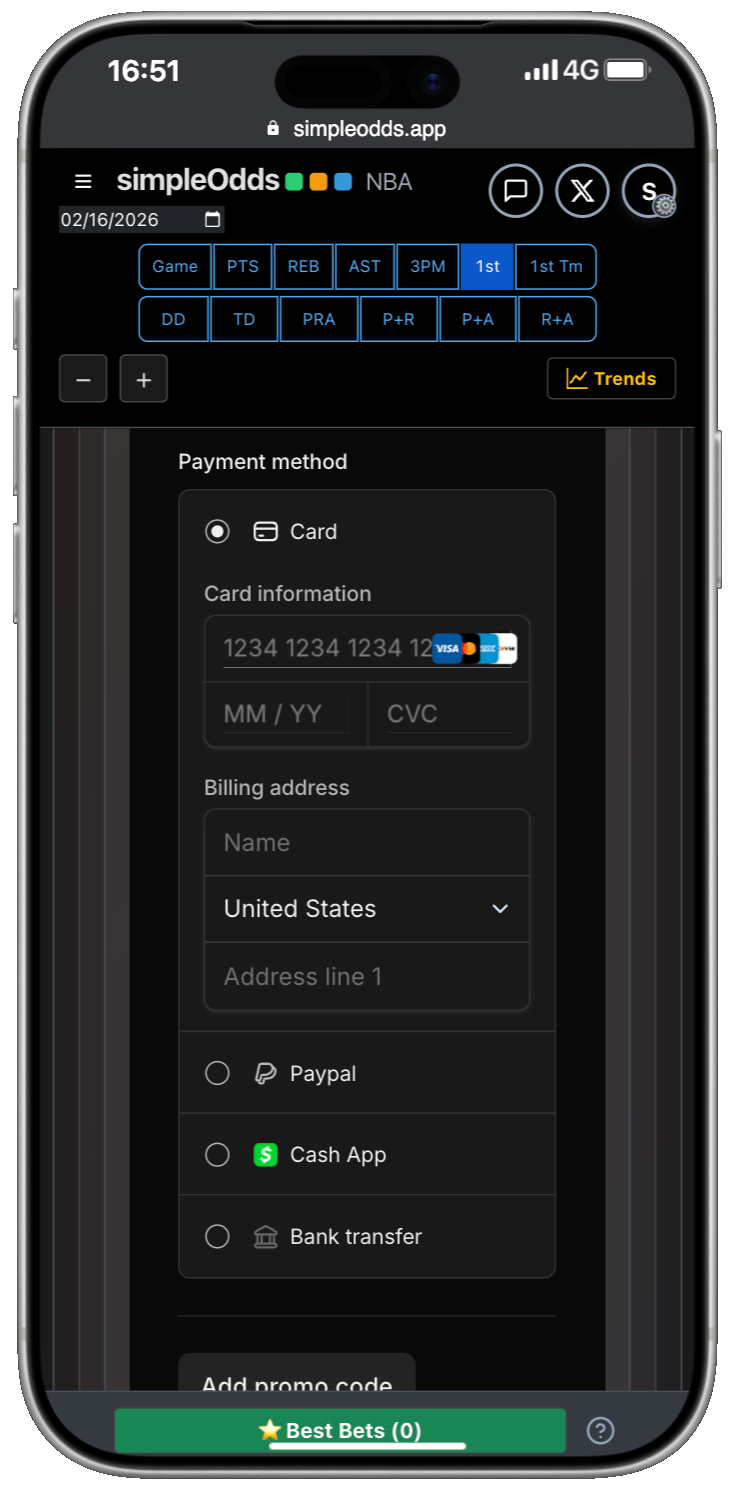
Step 7 - Enter Payment Info
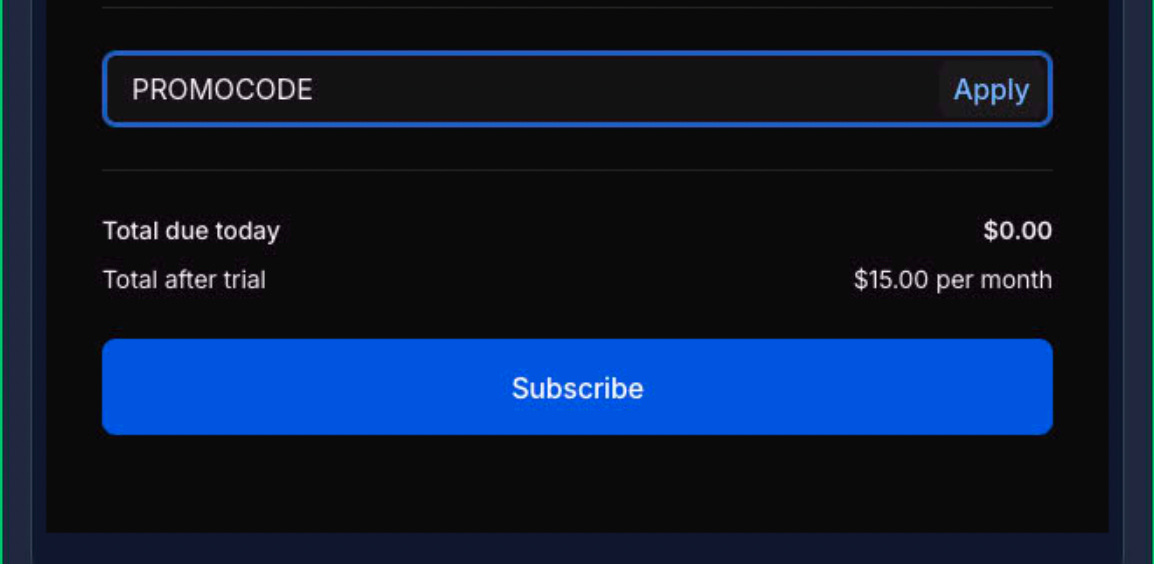
Enter payment info and promo code (if applicable)
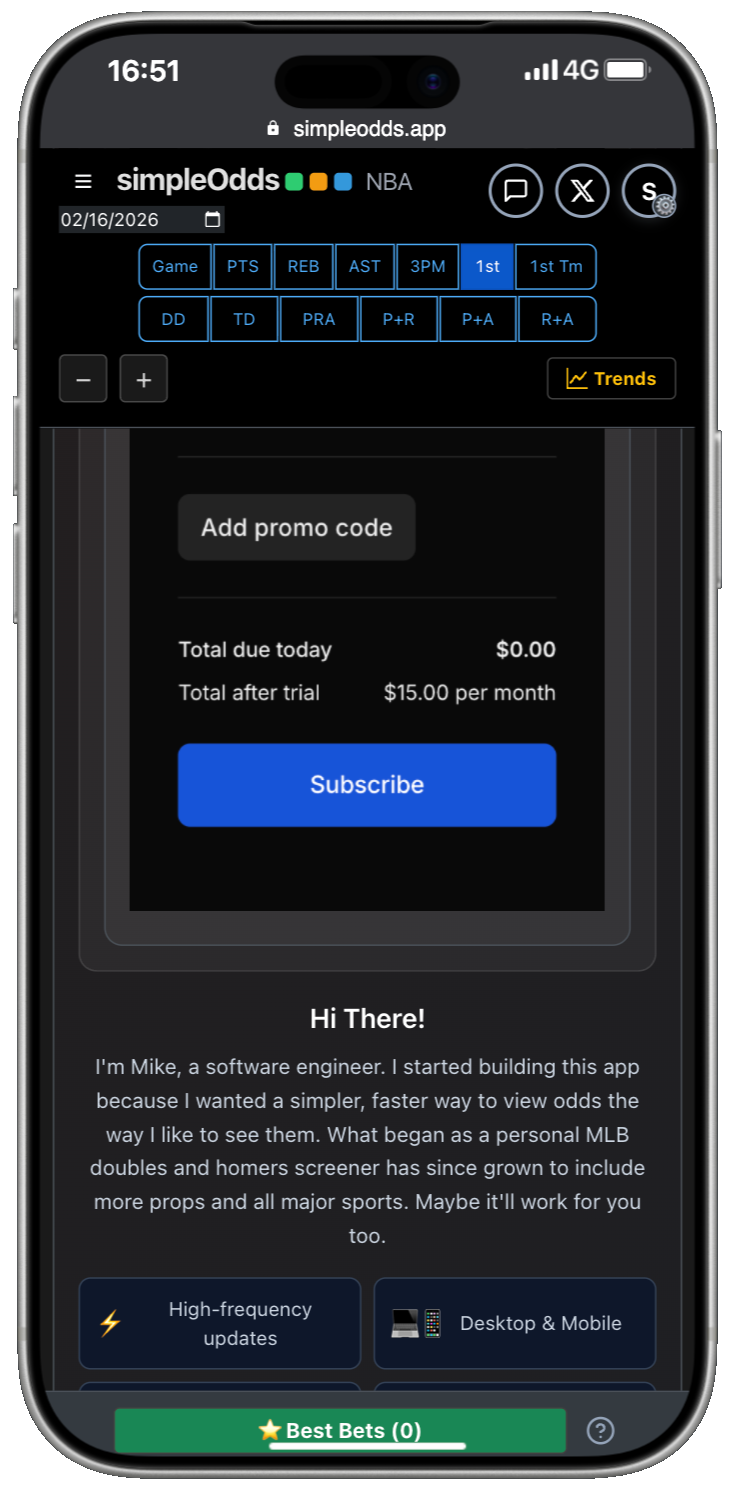
Step 8 - Subscribe
Click the Subscribe button.
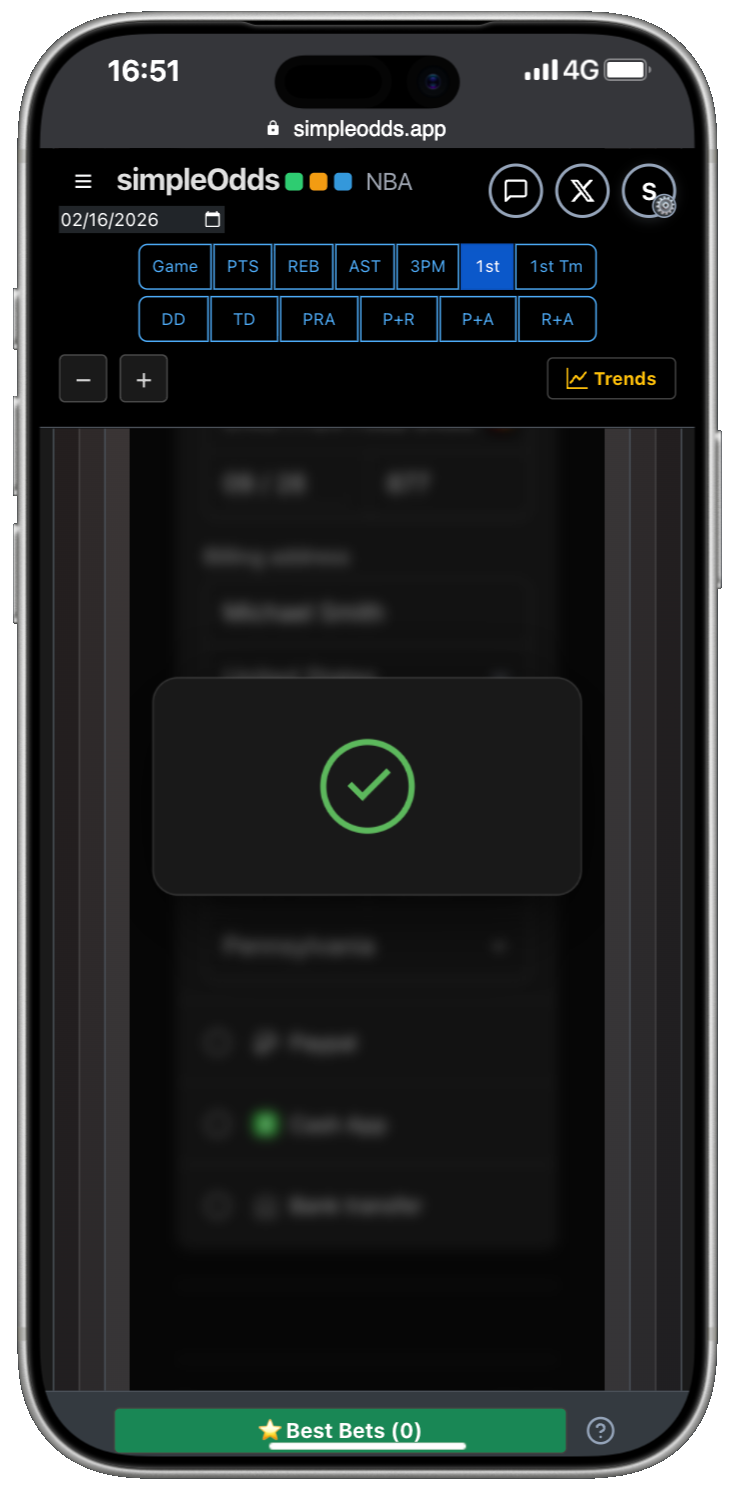
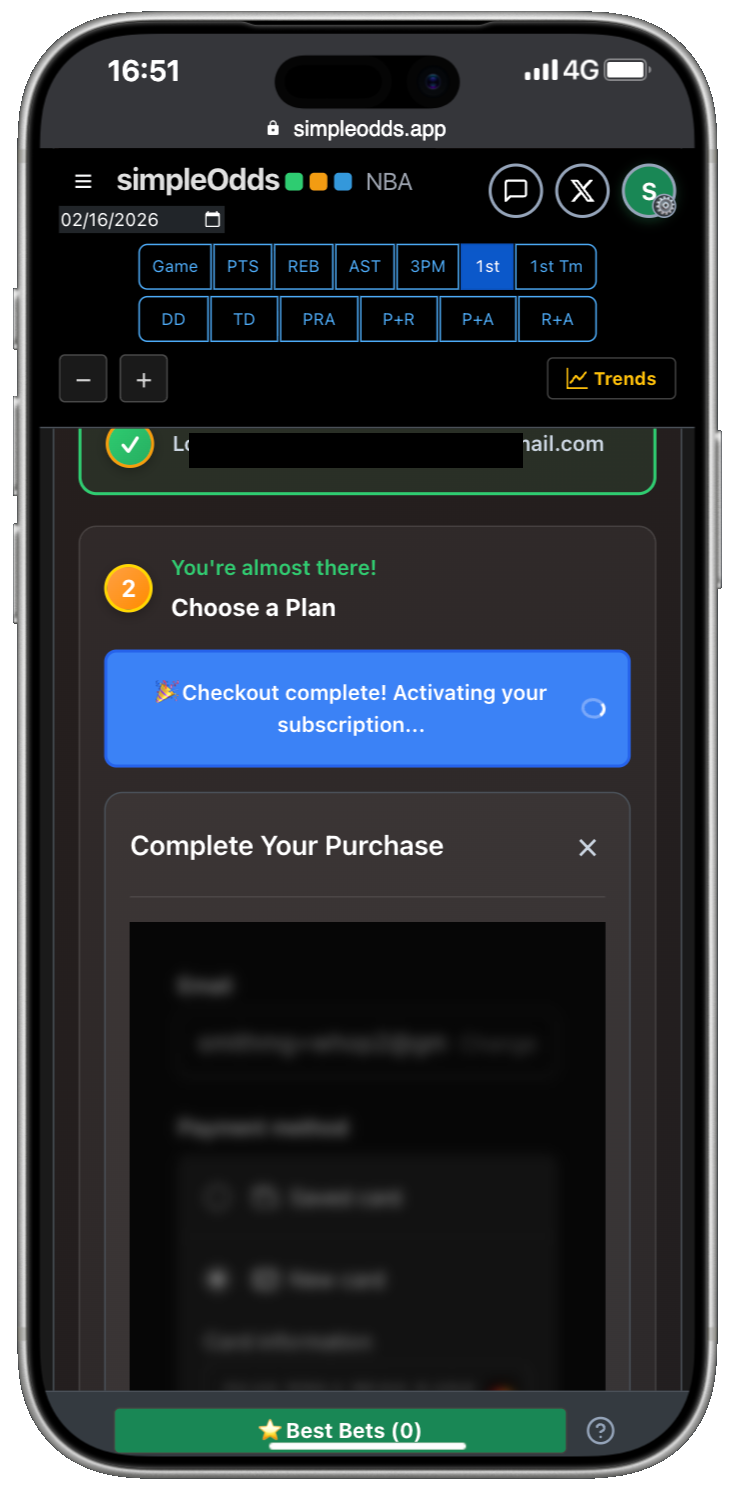
VERY IMPORTANT: The subscription/synchronization process can take approximately 1 minute. Do not navigate away from this screen.
VERY IMPORTANT: On a mobile device you may need to scroll up to see the Checkout Complete! Activating your subscription.. message. DO NOT navigate away from this screen or your account synchronization may be delayed.
Step 9 - Complete!
Once activation and synchronization has been completed you will be returned to the odds screen and your account will have full access to all odds for all sports!